
Profile Picture
What is it?
Your profile picture appears next to your name throughout LinkedIn and is often one of the first things people notice about your profile.
What should I do?
Use a recent, professional headshot with good lighting, a simple background, and a clear view of your face.
Need a new photo?
STRATUS ip can assist with taking or updating your professional headshot. Contact Dylan for help.

How to update it:
1. Select your picture
2. Select Update
3. Upload your picture
4. Select Submit
What is it?
Your profile banner is the large image displayed behind your profile photo. It is an easy way to visually connect your profile with STRATUS ip.
What should I do?
Employees are welcome to use the approved STRATUS ip LinkedIn banner to create a consistent and professional appearance.
➡️ STRATUS ip LinkedIn Banner Download
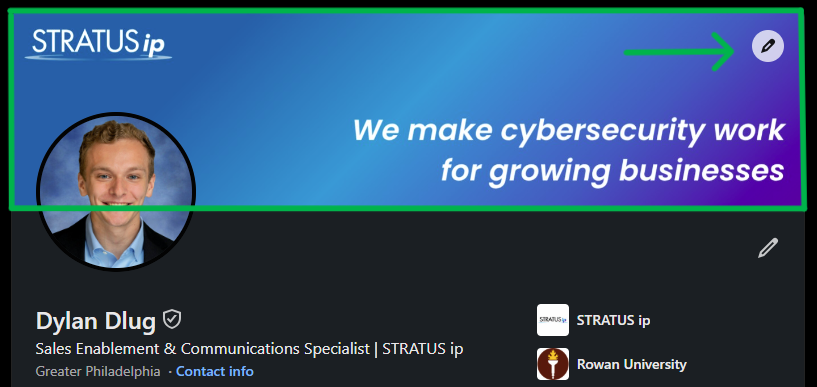
How to update it:
1. Click the pencil icon on your banner
2. Select Edit cover image
3. Select Change photo
4. Select Upload single photo
5. Select Save changes
6. Select Save
Headline
What is it?
Your headline is the short description that appears directly below your name on LinkedIn.
Keep it simple.
Your headline should be clear, easy to scan, and relevant to your role. Start with your current title and STRATUS ip, then add areas of expertise, certifications, or specialties when they provide useful context.
Suggested Formats:
General
Title | STRATUS ip
Title | Cybersecurity | STRATUS ip
Sales
Cybersecurity Consultant | Cybersecurity | Helping IT Leaders Reduce Risk | STRATUS ipSales Engineering
Solutions Engineer | Cybersecurity | Technical Pre-Sales | STRATUS ipClient Care
Client Care | Account Management | Customer Retention | STRATUS ipCIRRUS Service Delivery
Associate Security Engineer | CIRRUS Service Delivery | CompTIA Security+ | CompTIA Network+ | STRATUS ip
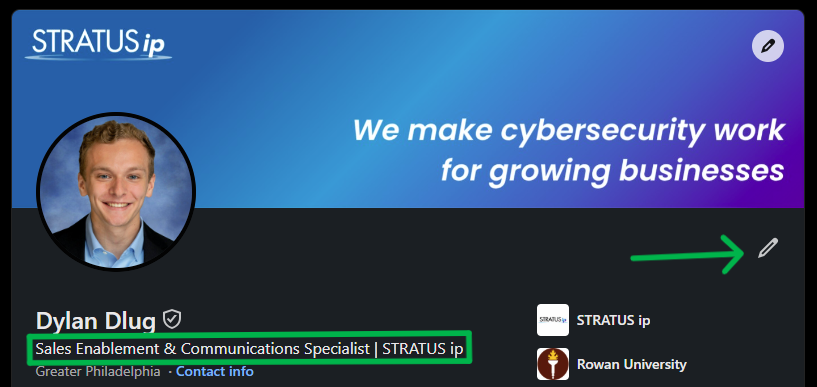
How to update it:
1. Click the pencil icon on your profile
2. Find the Headline Section
3. Write out your Headline
4. Select Save
Verify Your Account
What is it?
LinkedIn verification allows eligible members to verify certain information associated with their profile and display a verification badge.
What should I do?
If verification is available on your account, we recommend completing the process to help strengthen the authenticity of your profile.
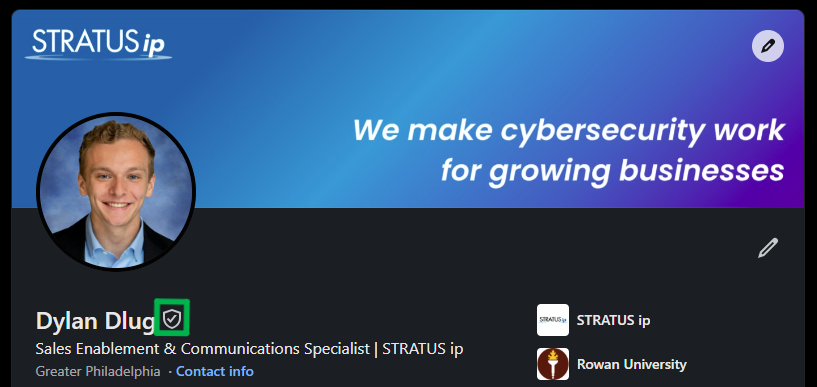
How to get started:
Visit your LinkedIn profile and look for verification options associated with your profile information. Follow LinkedIn’s prompts to complete the available verification method.
Note: Verification options may vary by employee and account.
About Section
What is it?
Your About section is a short professional introduction that gives visitors a better understanding of who you are, what you do, and what you bring to your role.
Keep it short and personal. A simple three-part structure works well:
What you do — Briefly explain your role and the value you provide.
How you do it — Highlight your main responsibilities, strengths, or areas of expertise.
What you care about — Finish with the type of impact you want to make or an area of professional interest.
For Example:
I’m the Sales Enablement & Communications Specialist at STRATUS ip, focused on equipping teams with the tools, resources, and information they need to work effectively and represent the company consistently.
My role spans sales enablement, communications, content development, training, brand support, and cross-functional initiatives. I work closely with teams across the organization to turn business needs into practical resources that improve productivity, strengthen alignment, and support a consistent customer experience.
I’m especially interested in building scalable resources and processes that make information easier to understand, easier to use, and more consistent across the organization.
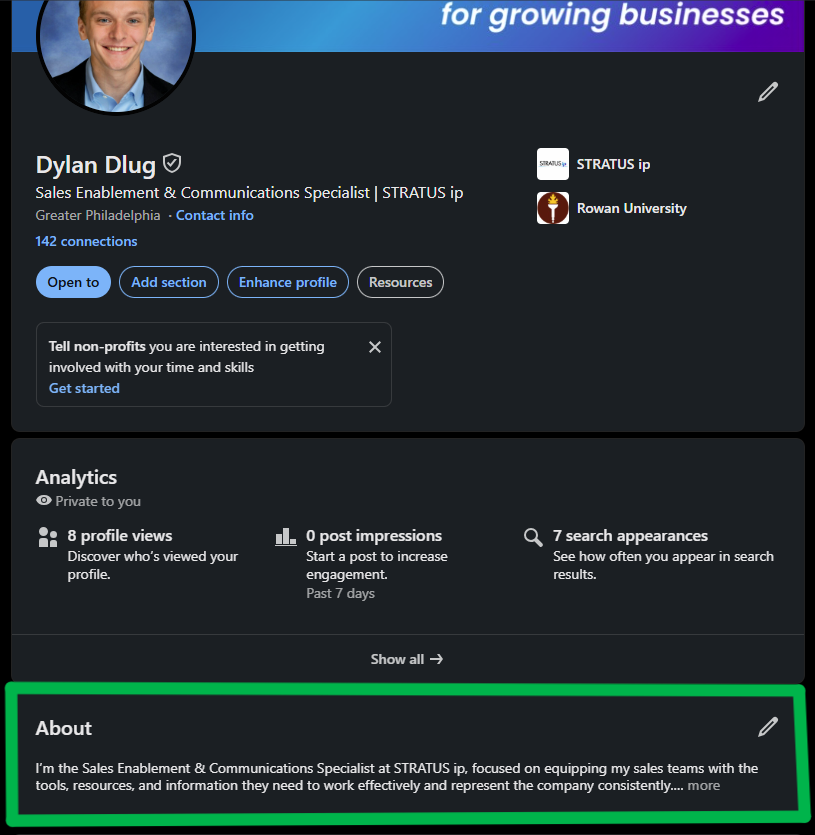
How to update it:
1. If the About section isn’t there, select Add section
2. Select the pencil icon
3. Write your About section content
4. Select Save
Experience Section
What is it?
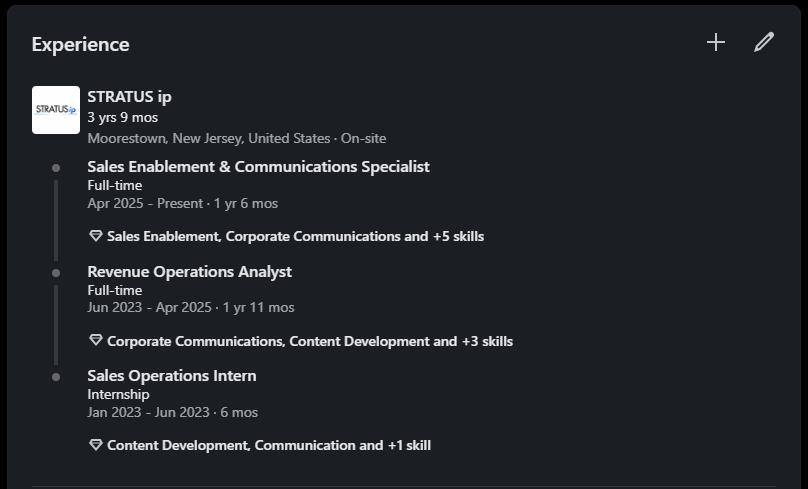
Your Experience section shows your employment history and provides more detail about your current role at STRATUS ip.
What should I review?
Make sure your current STRATUS ip entry includes your official job title, correct employment dates, official STRATUS ip Company Page, a short description of your role, and relevant skills.
When entering STRATUS ip as your employer, select the official company page rather than manually typing the company name. This helps connect your profile correctly with the organization.
For the description, briefly explain what you do and how your role supports the organization. You do not need to list every responsibility.
Skills
Add a small number of skills that accurately represent the work you perform in your role.
For example:
Sales: Cybersecurity, New Business Development, Penetration Testing, Vulnerability Management, Endpoint Security
Solutions Engineering: Cybersecurity, Technical Discovery, Visio, Penetration Testing, Vulnerability Management, Endpoint Security
Client Care: Cybersecurity, Account Management, Customer Retention
How to update it:
1. Select the pencil icon to make edits
2. You will be brought to the Edit role screen which allows to you make various types of edits.
3. Once you are satisfied with the content, select Save